
Start typing to see suggestions.
-
Start typing to see suggestions.



Creating your recommendation

Did you know?
Norton technology blocks millions of cyberthreats every day.
Trusted by millions of customers around the globe.
Your personalized matches

60-day money-back guarantee
*Important subscription, pricing, and offer details:
- By subscribing, you are purchasing a recurring subscription which will automatically renew.
- The price quoted today is valid for the offered introductory term. After that, your subscription will be billed at the applicable monthly or annual renewal price here. The price is subject to change, but we will always send you a notification email in advance.
2 Requires an automatically renewing subscription for a product containing antivirus features. For further terms and conditions, please see norton.com/virus-protection-promise.
4 Only available on Windows systems (but not in S mode or on ARM processors).
21 Utilities Ultimate, Driver Updater, Software Updater, and Cloud Backup features are only available on Windows (excluding Windows in S mode and Windows running on ARM processor).
‡ Monitoring available on Windows™ PC, iOS, and Android™ devices. Not all features available on all platforms.
§ Monitoring not available in all countries and varies based on region.


Protect your files with Norton Cloud Backup
Norton 360 plans come with up to 200GB Cloud Backup.
Store important files, photos, and documents in the cloud, and easily recover them if your device is lost, stolen, or crashes.
Only available on Windows devices.

Cloud Backup is only available for Windows.
Protect what matters with Norton Cloud Backup
From photos on your laptop to important documents, Norton Cloud Backup helps keep your files safe from loss, theft, and cyber threats, so you can always get them back when you need them.
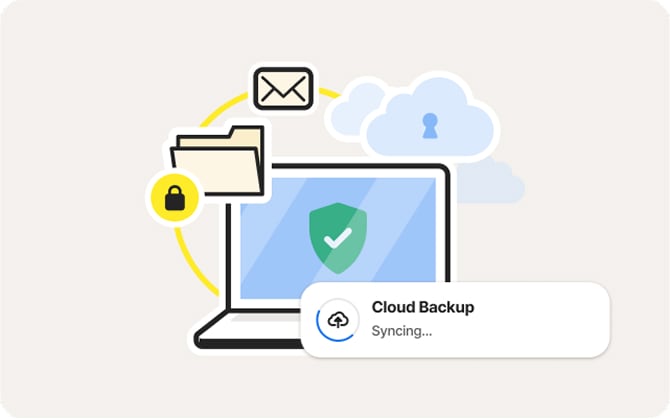
Encrypted for safety
All your files are encrypted before upload and stored securely in the cloud to help protect them from hackers, malware, and data theft.
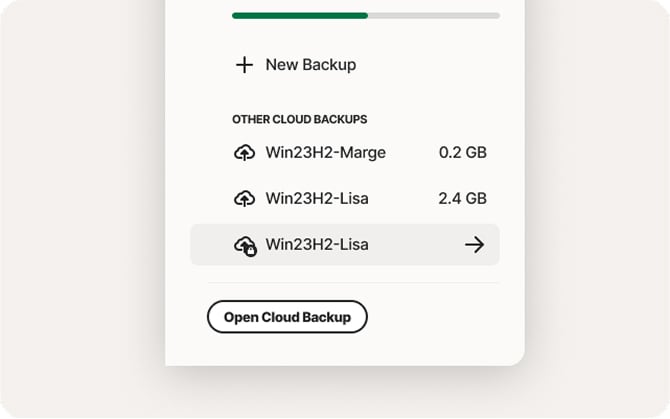
Set and forget
You’ll only need to set Cloud Backup once and your files back up automatically in the background‡‡.
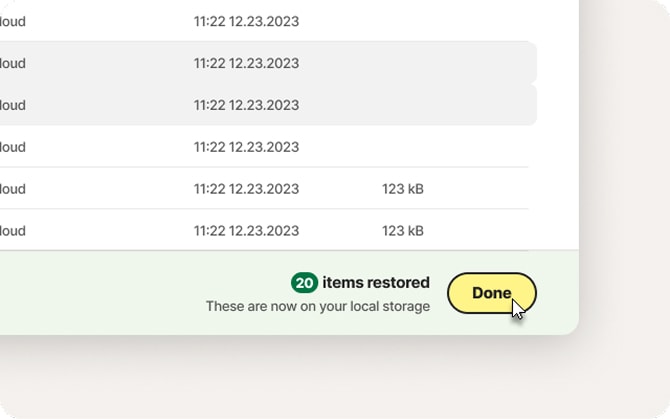
Restore anytime, anywhere
Lost your laptop? Hit by ransomware? No need to worry, just sign in from any device to restore your files in a few clicks.
Why do you need Cloud Backup?
Cloud Backup gives you a reliable, always-available copy of your files, so your digital life stays up and running, no matter what happens. It’s included with every Norton 360 plan.

Always have a clean copy ready
Keep a protected version of your important files, untouched by threats or corruption.

Get back to normal faster
Avoid downtime and frustration by restoring your files with just a few clicks.

Keep your files up to date
Your files are backed up regularly in the background, so you never have to remember.

Peace of mind
Know your digital life is safe, no matter what happens to your device.

Norton™ 360 plans
More than just Cloud Backup
We know it’s important to protect your files, not just your device. That’s why we’ve included Cloud Backup in all of our Norton 360 plans.
Unlike standalone backup tools, Norton 360 also has built-in security to help protect your devices from scams, hackers, and harmful software before threats reach your files.
Related articles

How to clean your PC software and hardware: A total guide
Learn how to clean PC hardware and software, from cleaning your keyboard to deleting unused files.

How to create a secure password that no one can crack
Learn tips to create good, strong, and secure passwords that will keep your accounts safer.

How to remove malware and viruses from a Mac or PC
Learn how to remove malware and viruses from your device before they can expose sensitive information to hackers.
System Requirements

Windows™ Operating Systems
Microsoft Windows 11 (all versions).
Microsoft Windows 10 (all versions).
Microsoft Windows 8/8.1 (all versions). Some protection features are not available in Windows 8 Start screen browsers.
Microsoft Windows 7 (all versions) with Service Pack 1 (SP 1) or later.
‡‡ Requires your device to have an Internet/data plan and be turned on.
Enter a promocode and click "Apply"


