






How to delete or deactivate your Instagram account on any device
Whether you’re worried about social media privacy or safety issues, or how much time you spend on the platform, deleting Instagram is simple. This guide will show you how to permanently delete your Instagram account or deactivate it if you just want a break. Then, get a VPN to secure your connection and help safeguard your in-transit data when browsing online.

2025
Consumer
Security Innovator




- How to delete or deactivate your Instagram account on mobile (Android and iPhone)
- How to delete or deactivate your Instagram account on a computer (PC or Mac)
- How to deactivate your Instagram account
- Deleting vs. deactivating Instagram
- How to download your Instagram data
- How to make your Instagram account private
- Keep your online activity private with a VPN
- FAQ
Social media platforms like Instagram offer fun and convenience, but they also pose risks, including distractions and safety concerns. In 2021, social media scams reported in the US resulted in losses of $2.7 billion, and the more information you share online, the easier it is for companies and hackers to track and build a profile of you.
So it’s understandable that many people choose to delete their accounts altogether or take an extended detox. Whether you’re looking to delete, deactivate, or make your Instagram account private, here’s how to do it on your phone or computer. If you’re deleting your account, you may want to save your photos and data. If so, hop down to our section on downloading your Instagram data so you don’t lose it.
How to delete or deactivate your Instagram account on mobile (Android and iPhone)
To delete your Instagram account on Android and iPhone, go to Accounts Center, then tap Deactivation or deletion, and follow the instructions. Before your account is deleted, it will be disabled for 30 days — your profile will be hidden from other users during this period. If you log into your account within 30 days, your account will be reactivated, otherwise it will be permanently deleted.
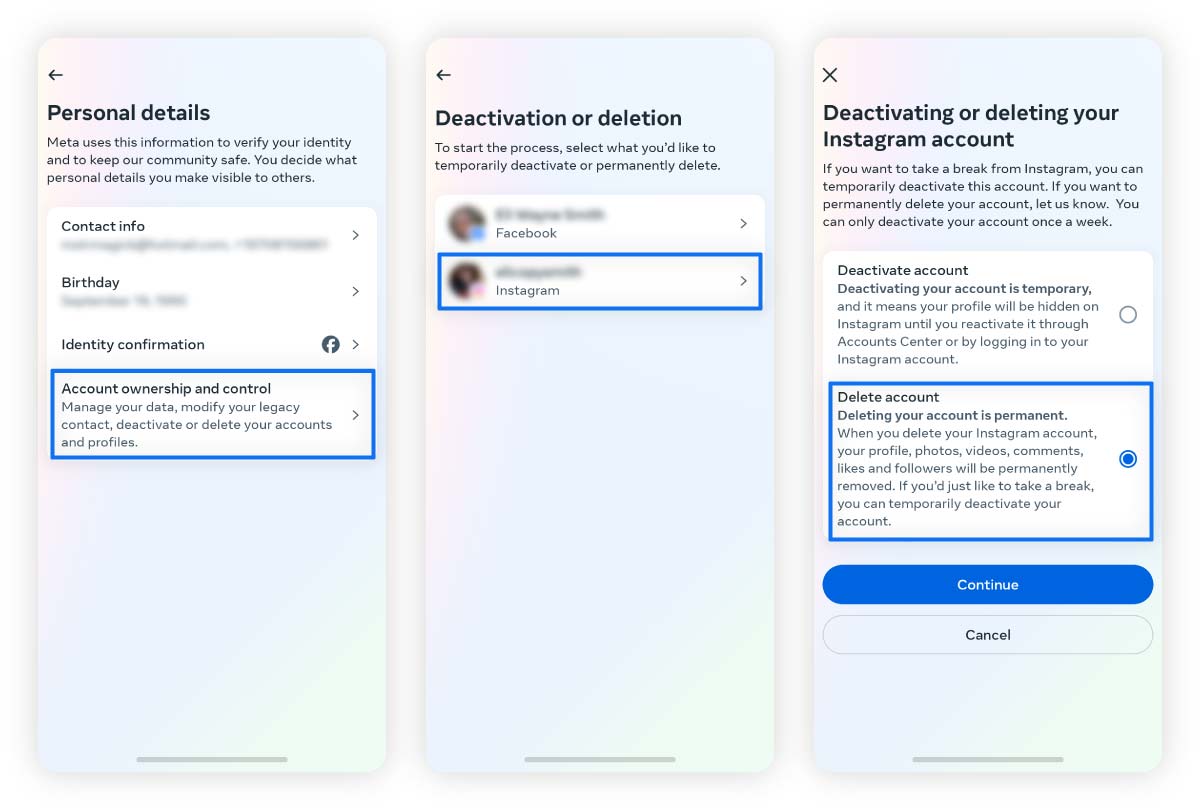
Here are the step-by-step instructions for deleting your account via the Instagram app on both Android and iPhone:
- Tap your profile picture, then tap the three-line menu.
- Tap Accounts Center and select Personal details.
- Select Account ownership and control.
- Tap Deactivation or deletion, then select the account(s) you want to delete.
- Choose Delete account, then tap Continue to confirm your account deletion.
After confirming deletion, you’ll receive an email confirmation and be automatically logged out of your account. This is just one step toward removing your personal information online. You might want to also consider deleting Facebook and other online accounts.
How to delete or deactivate your Instagram account on a computer (PC or Mac)
To delete your Instagram account on a computer, navigate to Account ownership and control, select Deactivation or deletion, and follow the prompts. Your account will first be disabled for 30 days, hiding your profile from others. If you log in within this time, your account will be reactivated; otherwise, it will be permanently deleted after 30 days.
Here’s how to permanently delete your Instagram account from your browser:
1. Access the Instagram Accounts Center from this link, open your Instagram account and click the three-line menu at the bottom left of the screen.
2. Select Settings and then Accounts Center.
3. Select Personal details, then Account ownership and control.
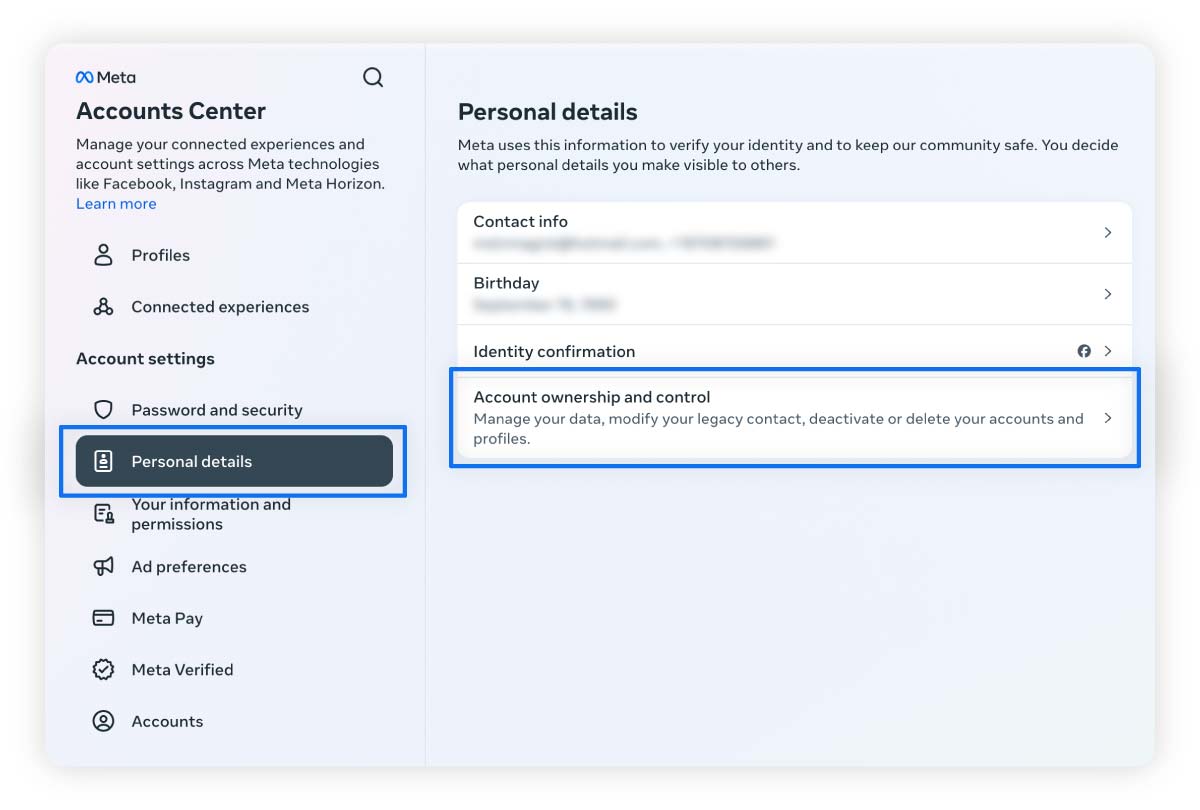
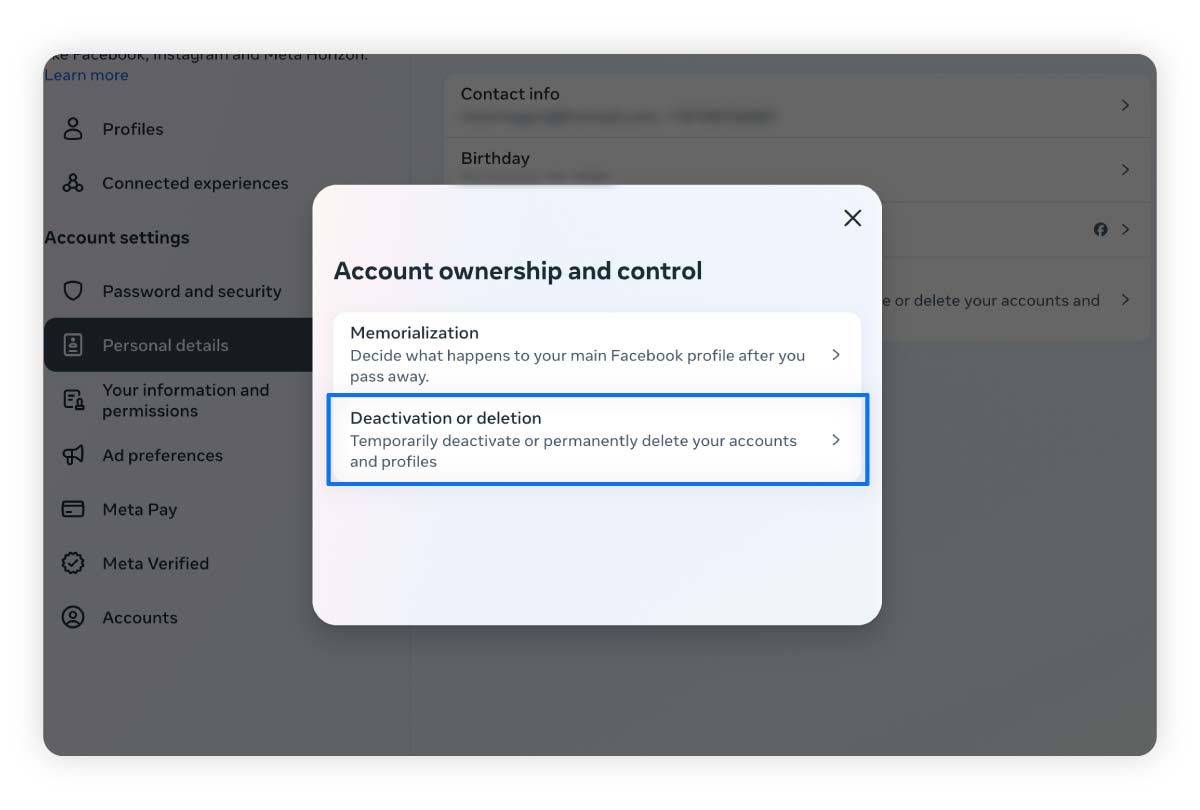
4. Click Deactivation or deletion, select the account you want to delete, then choose Delete account.
How to deactivate your Instagram account
When deactivating your Instagram account, follow the same steps above for deleting your account, but choose Deactivate account when given the option. Deactivation is temporary, and you can easily undo it just by logging into your account.
Here’s how to temporarily disable your Instagram account from the Accounts Center on the mobile app or a computer:
- Choose Personal details and select Account ownership and control.
- Select Deactivation or deletion followed by the account you want to deactivate.
- Select Deactivate account and then Continue.
Deleting vs. deactivating Instagram
Deleting an Instagram account permanently removes all data, photos, and followers, making it impossible to recover. Deactivating, by contrast, temporarily hides the profile and content, allowing users to reactivate and restore everything later. Deactivation is ideal for breaks, while deletion suits those seeking a permanent exit from Instagram.
Here’s a more detailed look at the differences between the two:
Deletion:
- Your account is permanently deleted 30 days after the request is made.
- Your data is permanently wiped (which is why you may want to download it first).
- Another user can take over and use your username (handle).
- Instagram scammers can’t target your account.
Deactivation:
- You can reactivate your account at any time.
- Your data is preserved on Instagram’s servers.
- Other users can’t take over or use your username (handle).
- Your profile is hidden from other Instagram users.
- Your account can still be hacked by scammers.
Deactivation is less secure because your account is still on Instagram’s servers and could get hacked. If you’re going to deactivate your account, make sure you have a strong password and two-factor authentication since you won’t be monitoring it. You should also do this with all of your active accounts to help keep your personal info more secure.
If you’d prefer to keep your Instagram visible to friends and family, but prevent others from viewing your account, the better option is to make your Instagram private.
How to download your Instagram data
Before deleting your account, consider downloading your Instagram data if you want to save memories like photos and comments. Once you delete your Instagram, all your data will be permanently deleted. Downloading your info also gives you valuable insight into how much and what kind of data Instagram has collected and stored.
Download your Instagram data on mobile
To download a copy of your information through the Instagram app on your mobile device, follow these steps:
- Tap your profile picture and the three-bar menu.
- Go to the Accounts Center and select Your information and permissions.
- Tap Download your information, then select Download or transfer information.
- Select your Instagram profile, then tap Next.
- Select how much information you want to download, then choose whether you want to download or transfer the data and follow the on-screen instructions.
Download your Instagram data on a PC or Mac
You can also download your information on your computer:
- Click the three-line menu and select Settings.
- Select Accounts Center and choose Your information and permissions.
- Choose Download your information and select Download or transfer information.
- Select the account(s) you want to download, then click Next.
- Select how much information you want to download, then choose whether you want to download or transfer the data and follow the on-screen instructions.
How to make your Instagram account private
Setting your Instagram account to private means only approved followers can view your posts, stories, and profile details. This boosts privacy by keeping strangers and unapproved users from accessing your content, giving you control over your audience while still enjoying the platform.
Making your Instagram private on mobile
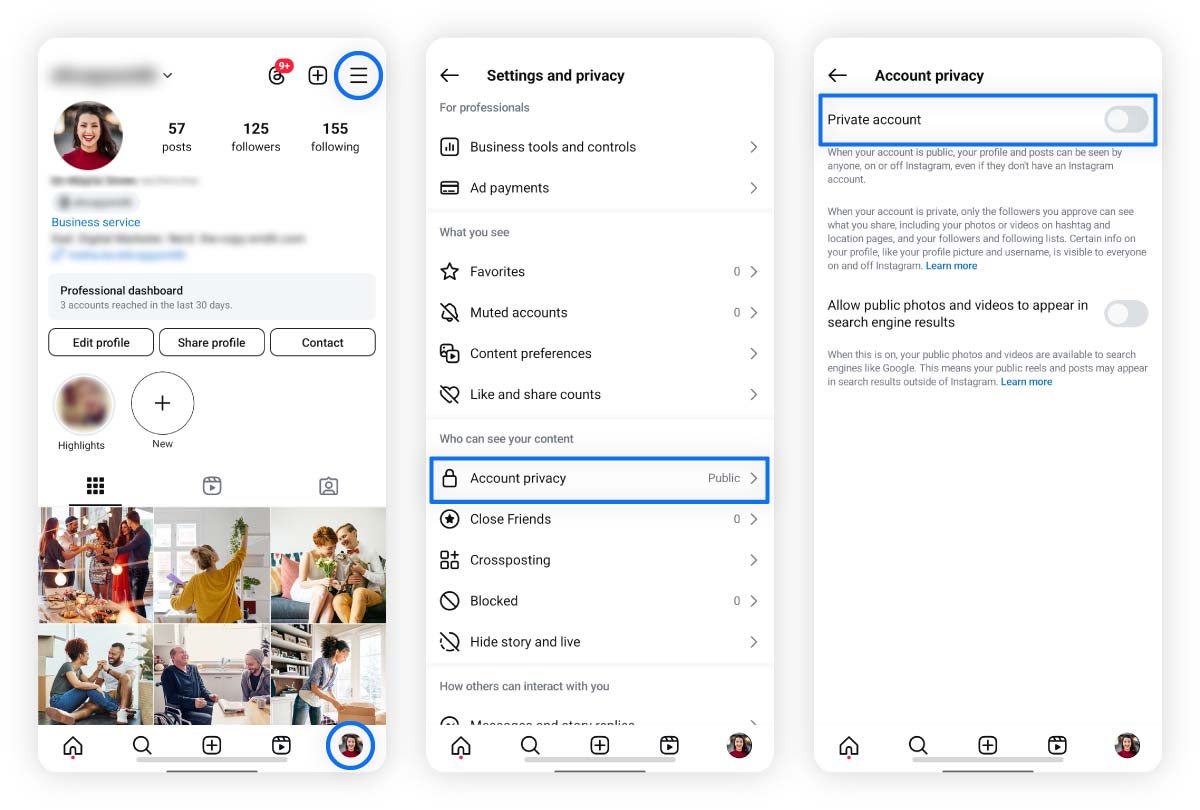
Here’s how to make your account private on an Android or iPhone:
- Tap your profile picture, then tap the three-line menu.
- Scroll down until you see Who can see your content, then tap Account privacy.
- Toggle on Private account, then tap Switch to private to confirm.
Making your Instagram private on a computer
Here’s how to make your account private on a PC or Mac:
- Click the three-line menu and select Settings.
- Under Who can see your content, select Account privacy.
- Toggle on Private account.
- Click Switch to private to confirm.
Keep your online activity private with a VPN
No matter how privacy-aware you are about your social media activity and what you share, data collection companies and other third parties can still track much of your online activity. Norton VPN helps you browse privately and hides your location, letting you choose a server location of your choice. Get it today and start browsing more securely on up to 10 of your devices.
FAQ
What happens after you delete your Instagram account?
After you delete your Instagram account, all of your likes, comments, photos, and information will be permanently removed from the platform. Your username will then become available for another user to use.
How long does it take for Instagram to delete your account?
Your account and data will be permanently deleted after 30 days from the time Instagram receives your account deletion request.
Can you recover a deleted Instagram account?
No, you cannot recover a deleted Instagram account. But you can prevent account deletion if you log into Instagram within 30 days of the initial deletion request.
Can you recover a disabled Instagram account?
Yes, you can recover an Instagram account that has been disabled. Disabling is temporary, so you can reopen your account at any time simply by logging in.
Can you delete your Instagram searches?
Yes, you can delete your search history on Instagram. On mobile, go to Your activity > Recent searches > Clear all > Clear all to confirm. On a computer, click the magnifying glass on the left > Clear all next to Recent.
Why should you delete Instagram?
You may want to delete Instagram due to concerns about privacy and data security. Or you may want to reduce your screen time, improve your mental health, and avoid online distractions.
Instagram is a trademark of Instagram LLC.
Editorial note: Our articles provide educational information for you. Our offerings may not cover or protect against every type of crime, fraud, or threat we write about. Our goal is to increase awareness about Cyber Safety. Please review complete Terms during enrollment or setup. Remember that no one can prevent all identity theft or cybercrime, and that LifeLock does not monitor all transactions at all businesses. The Norton and LifeLock brands are part of Gen Digital Inc.






Want more?
Follow us for all the latest news, tips, and updates.