


How to stop pop-up ads on Android phones and iPhones
Tired of intrusive pop-ups interrupting you on your phone? Learn how to stop pop-up ads on Android and iPhone. Then, get a mobile security app with built-in scam-detection technology to help protect against malicious pop-ups and other online threats.

2025
Approved
Anti-Phishing
2025
Top Rated Product


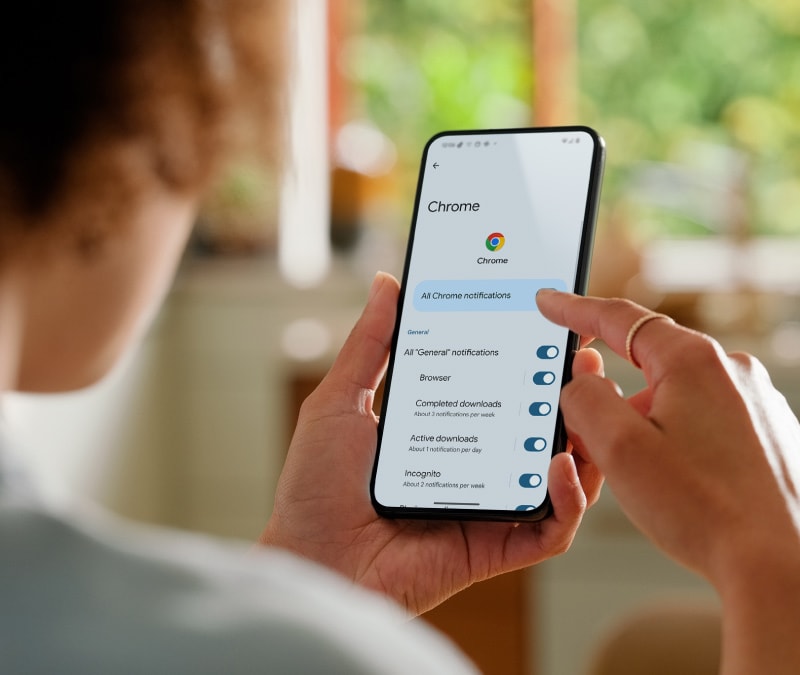

Pop-up ads are annoying at the best of times and dangerous at the worst. Cybercriminals can use them to trick you into clicking dangerous links or downloading malware, which then puts your personal data and digital privacy at risk.
Spreading and leveraging dangerous pop-ups is a growing threat, with malvertising attacks targeting Gen customers on the rise at the end of 2024, according to research published by Gen security experts.
Learning how to stop pop-ups on your Android or iPhone can help protect against the risks of dangerous ads. If you’re wondering “how do I stop adverts on my phone?” then read on to learn how to block unwanted and potentially dangerous pop-up advertisements, whatever mobile device you use.
How to stop pop-up ads on an Android phone
You can stop pop-up ads on your Android phone’s Chrome browser from the settings menu in the Chrome app. You don’t need to download any third-party applications to get started.
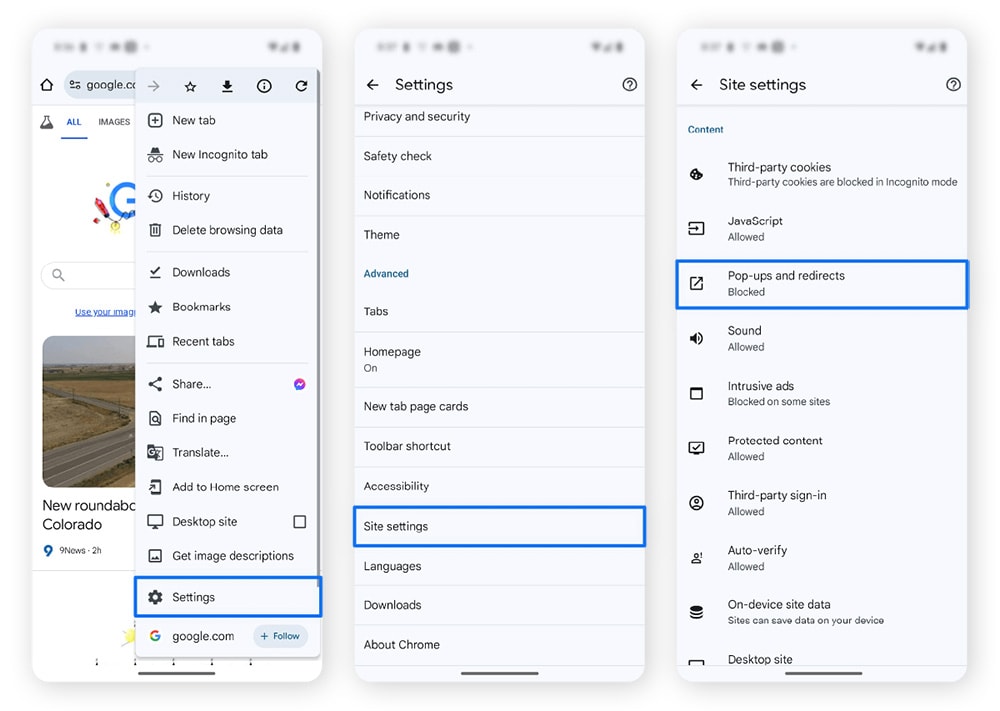
Here’s how to get rid of pop-up ads in Google Chrome for Android:
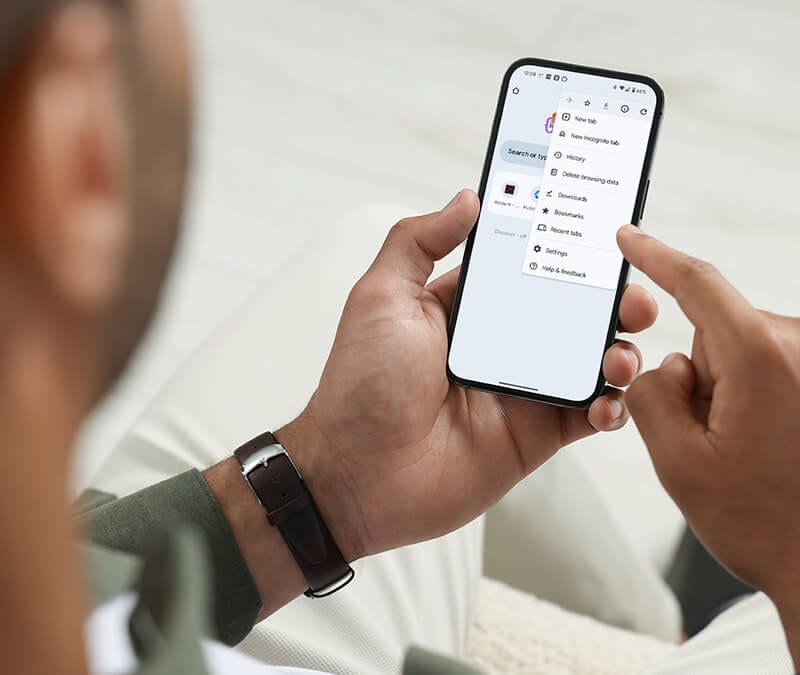
- Open the Chrome app and tap the three-dot icon to the right of the address bar.
- Select Settings, scroll down, and tap Site settings.
- Scroll down, tap Pop-ups and redirects, and then tap the toggle to turn it off.
These steps only block pop-ups within the Chrome browser. If you continue to get annoying ads even after changing your Chrome settings, somebody may have hacked your phone, or it could have a malware infection.
How to stop ads on Firefox for Android
Firefox for Android blocks pop-ups through a built-in ad blocker, similar to Chrome. While this ad blocker is automatically active, it helps to know where to find it in your settings in case it gets disabled.
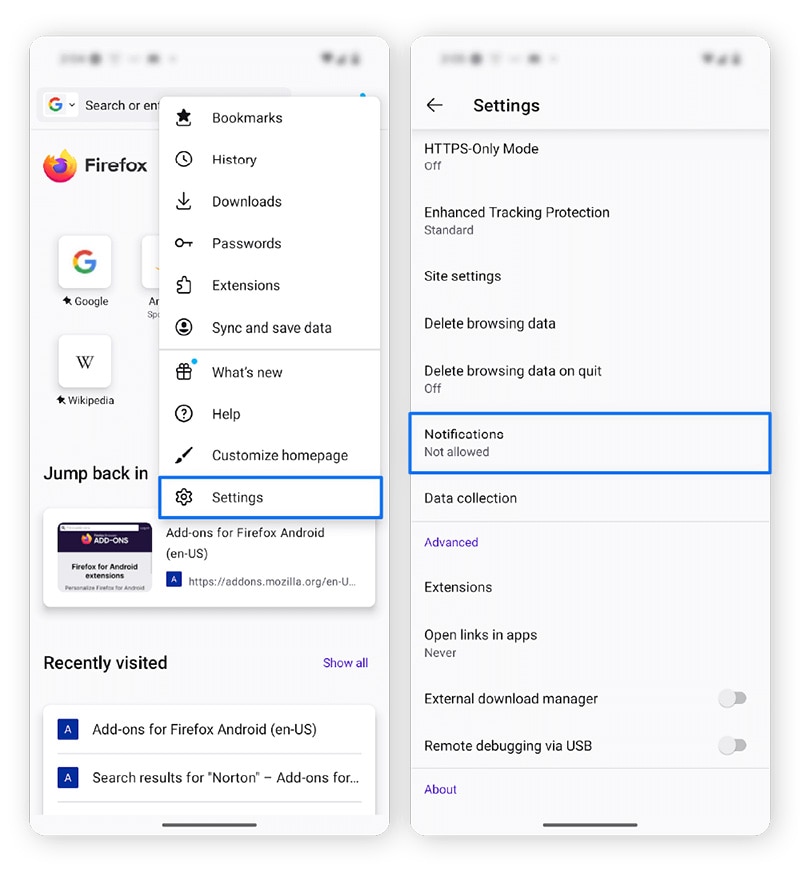
Here’s how to stop pop-ups on Firefox for Android:
- Tap the three-dot icon in the upper-right corner and select Settings.
- Scroll down, select Notifications, and toggle Not allowed.
Alternatively, you can download one of Firefox’s third-party pop-up blockers from the Extensions menu under Settings.
How to stop pop-up ads on your Android phone home screen
Some third-party Android apps may send you ads in push notifications that appear directly on your home screen. You can stop these by disabling notifications from that specific app in your Android settings.
Here’s a step-by-step guide to stop pop-up notifications coming from individual apps:
- Open Settings, tap Apps, and select See all apps.
- Scroll until you find and select the offending app, tap Permissions, and then select Notifications.
- Toggle off any notifications you don’t want.
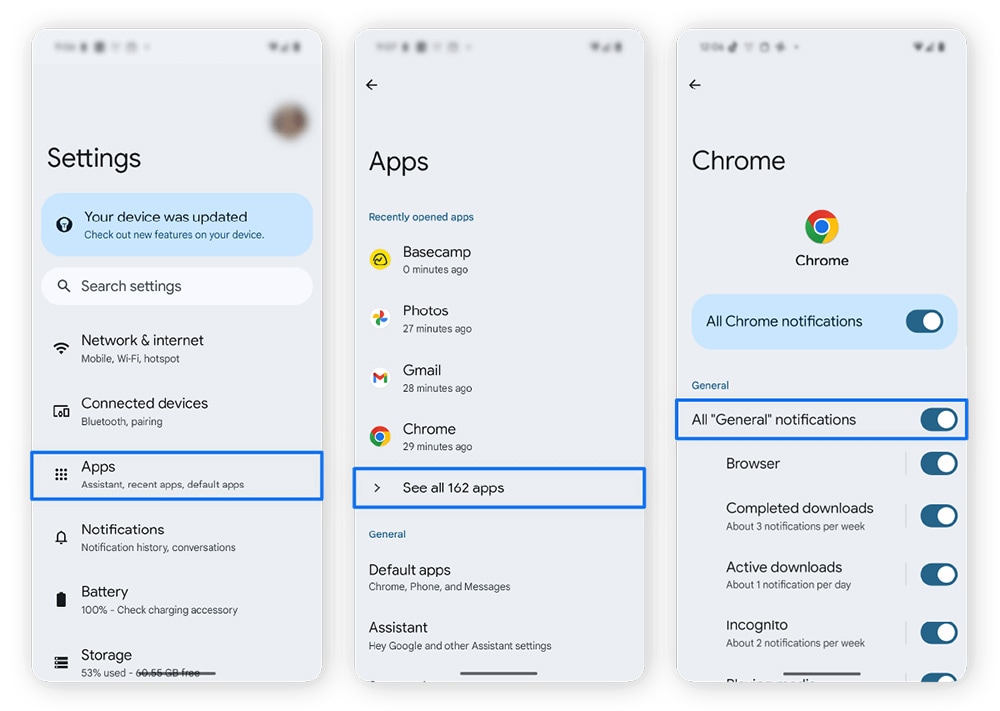
If websites are sending push notifications to your home screen from the Chrome browser, you can select Chrome from your apps list to block them. Then, use the toggle to disable All ‘sites’ notifications.
How to get rid of ad-serving apps on Android
You can get rid of ad-serving apps on Android by uninstalling them. To do this, simply long-press the app icon on your home screen or in the app drawer, wait for the drop-down menu to appear, and tap Uninstall.
Alternatively, you can use the Apps option under Settings to uninstall apps. Check the Recently used list to see how many notifications each app delivers and consider whether to disable notifications for the worst offenders.
Apps that deliver excessive amounts of ads may be adware. This type of software can serve ads that contain links to viruses or other types of malware, and they often use predatory tactics to get you to accidentally tap malicious links.
To identify and remove adware, run an antivirus scan using a mobile security app like Norton 360 Deluxe and uninstall any malicious apps that are flagged.
How to block ads on your Samsung phone
Samsung devices let you disable pop-up ads from the app notifications menu. Getting there differs slightly from other Android devices.
Here’s how to stop ads on your Samsung device:
- Open your Android Settings and scroll down to Notifications.
- Select App notifications, tap All, and filter the list by Most recent.
- Tap the offending app and toggle off Notification reminders.
You might benefit from a new browser if you still see unwanted ads while using the internet on your Samsung device. Norton Private Browser helps you browse without ad trackers, keeping you safer and boosting your online privacy.
How to block ads on iPhone and iPad
Safari, the default browser for iOS devices (iPhones and iPads), automatically blocks pop-up ads. However, if you’re still receiving pop-ups, you might want to double-check the pop-up blocker settings.
Here’s how to stop pop-up ads on Safari on an iPhone or iPad:
- Open your Settings and scroll until you see Safari.
- Scroll to General and toggle Block Pop-ups on.
Plus: How to allow pop-ups on iPhone (and iPad)
The pop-up blocker enabled by default in Safari on iPhones and iPads can misidentify newly-opened pages as unwanted ads. To resolve this, you can temporarily unblock pop-ups by opening Safari, navigating to the Settings menu, tapping General, and toggling off Block pop-ups.
Just bear in mind that this will leave you unprotected against actual pop-up ads, which can contain malicious links. While pop-ups are enabled, stay vigilant for mobile security threaths that might try to trick you into downloading malware or spyware.
Remember that while blocking pop-ups through your browser settings is helpful, a dedicated ad-blocking app can add an extra layer of protection so you can browse in peace.
Why do ads keep popping up on my phone?
There are all sorts of reasons why you might keep getting pop-up ads on your phone. Some are legitimate, albeit annoying, ads on trusted websites. Others can be signals that your phone is infected with adware or malware, which can put your digital security and privacy at risk.
Here’s a look at some possible causes for ads that keep popping up on your phone:
- Failed pop-up blocker: If your phone displays pop-up ads while you browse trusted sites, your pop-up blocker might be disabled or underperforming. Check your browser’s pop-up blocking settings and see if you can add specific websites to a block list to bolster your protection.
- Adware: Adware is designed to inundate you with pop-up, banner, or message-based ads, potentially slowing your phone down, causing it to overheat, or tricking you into clicking malicious links. Check your phone’s app list or run an anti-malware scan to check for adware.
- Ransomware: If your phone is infected with ransomware, you might be bombarded with pop-up ads designed to pressure you into paying a fee on your home screen. Run an antivirus scan on your device as soon as possible to try and remove any malicious apps.
- Scareware: Pop-ups warning that your phone is infected with malware and urging you to take immediate steps to fix the problem might be a symptom of scareware. These are fake alerts designed to trick you into clicking malicious links or buying a bogus antivirus program, which is likely a form of Trojan malware.
Remember, some mobile pop-up ads are legitimate advertisements while others can be caused by malware infections. If the ad doesn’t look professional, it might be a sign it’s malicious. If you’re concerned, run an antivirus scan.
Common pop-up ads on Android
Common pop-up ads on Android include browser pop-ups, lightbox ads, and home screen notifications. These ads don’t always open up a new page, meaning some pop-up blockers might not catch them.
Here’s a detailed breakdown of common pop-up ads and whether the ad-blockers built into most mobile browsers are likely to catch them:
Pop-up type |
Description |
Effectiveness of built-in ad blockers |
|---|---|---|
Regular |
Opens a new window on the screen |
Often caught |
Lightbox |
Dims the current page and overlays a new window |
Often caught |
Fullscreen |
Covers the entire browsing screen with an ad |
Sometimes caught |
Scroll-in |
Slides onto the screen as the user scrolls down |
Harder to catch |
Exit Intent |
Appears when the user is about to close the screen |
Often caught |
If you want to minimise the number of ads on your phone or mobile browser, consider getting a dedicated third-party ad-blocking app. These are typically more effective than built-in pop-up blockers, with a broader range of features that let you customise your ad-blocking settings and block more malicious ads that could be part of a malvertising scheme.
Tips for how to avoid phone pop-ups
You can avoid many pop-up ads on Android phones and iPhones by keeping clear of potentially dodgy apps, untrustworthy websites, or suspicious links. Using a dedicated mobile security app and pop-up blocker can also help, resulting in a safer browsing experience.
If ads keep popping up on your phone, here are some tips that can help you reduce your exposure:
- Avoid dodgy apps: Stick to well-reviewed apps from well-known, trusted sources via the official Apple App Store or Google Play Store. Avoid third-party app vendors to ensure you’re only downloading vetted apps.
- Stick to HTTPS websites: Websites with HTTPS in the web address provide a secure, encrypted connection between you and the web server. This reduces the risk of man-in-the-middle attacks.
- Enable pop-up blockers: Customise your phone and browser settings to block pop-ups on your home screen and browser. You can also opt out of third-party cookies or clear your browser cookies regularly to limit the number of personalised ads you get.
- Ignore suspicious links and attachments: Avoid clicking suspicious links to limit your exposure to potential malware downloads and help prevent hackers or other cybercriminals from gaining access to your device.
- Use a mobile security app: Download a strong mobile security app, to help you detect and block malicious websites and other threats before they get the chance to infect your phone with adware or other malicious programs.
Protect against malicious ads
Blocking pop-up ads doesn’t just make your phone experience less annoying, it can also protect you against some of the risks of malvertising attacks.
Follow our guide to stop pop-ups on your phone, and use Norton 360 Deluxe to get powerful antivirus, malware, ransomware, and hacking protection on up to three devices — as well as access to Norton VPN to help keep your online activity private.
FAQs
Why do ads suddenly appear on my Android phone?
Ads suddenly appearing on your Android phone might be because your browser ad-blocking or system notification settings have been changed. Otherwise, it might be a symptom of adware installed on your device. You should reactivate your pop-up blocker and scan for malware.
What are the different kinds of pop-up ads on Android?
Different kinds of pop-up ads on Android include home screen notifications, browser notifications, and browser pop-ups. You can block all of these from your phone’s system or browser settings.
Does Android have a pop-up blocker?
Android phones don’t have a system-wide pop-up blocker. However, the default Android browser, Chrome, includes a built-in pop-up blocker, and other pop-up notifications can be blocked on a per-app basis through the system settings.
How can I tell which app causes pop-ups?
You can tell which apps are sending pop-ups by visiting the recently used apps list under the Apps menu item in your system Settings app. Active apps that send pop-ups will appear as used. You can also see the number of notifications, some of which might be pop-up ads.
Editorial note: Our articles provide educational information for you. Our offerings may not cover or protect against every type of crime, fraud, or threat we write about. Our goal is to increase awareness about Cyber Safety. Please review complete Terms during enrollment or setup. Remember that no one can prevent all identity theft or cybercrime, and that LifeLock does not monitor all transactions at all businesses. The Norton and LifeLock brands are part of Gen Digital Inc.







Want more?
Follow us for all the latest news, tips, and updates.